



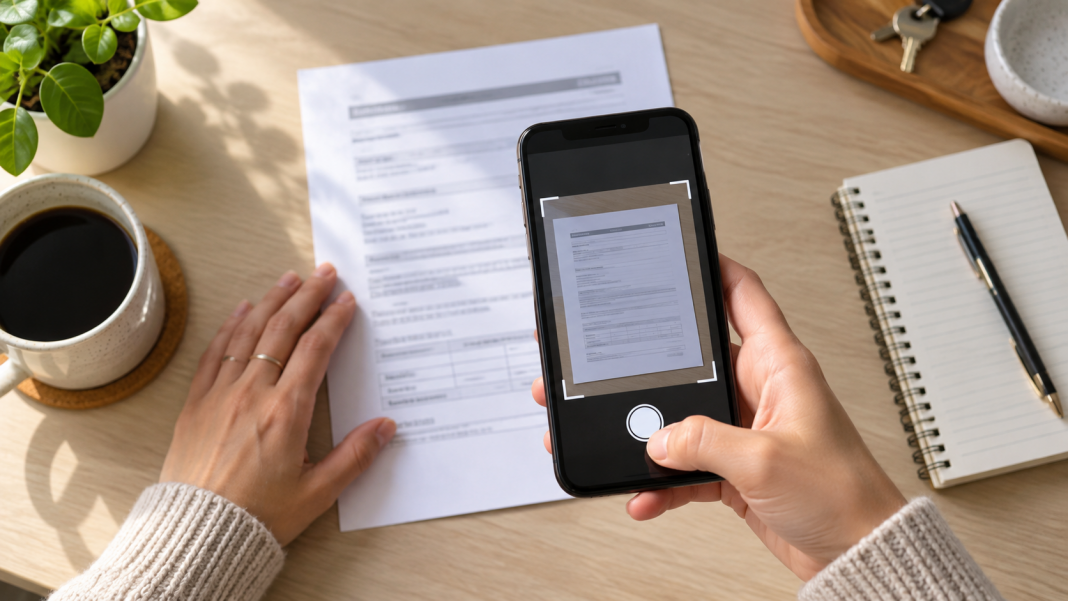
AI-generated image for illustration purposes.
Many iPhone users already carry a document scanner in their pocket. Apple includes scanning tools in the Notes app, Files app and several document-sharing workflows, allowing users to turn paper records into PDFs without installing a separate scanning app.
In Notes, open a note, tap the attachment or camera control and choose the document-scanning option. Hold the phone above a page in good light. The iPhone can identify document edges automatically, or users can trigger the capture manually and adjust the corners before saving.
The Files app offers a similar option for people who want the scanned document saved directly to iCloud Drive or another connected folder. From a folder, open the more-options menu and select Scan Documents. The finished scan can be saved as a PDF and shared by email, text message or cloud link.
For better results, place the paper on a flat, contrasting surface and avoid glare or deep shadows. Review each page before saving, especially when scanning forms, receipts, school records or documents that need to remain legible when printed.
Scanning tools are useful for personal records, but sensitive documents should be stored carefully. Users should confirm where their files are saved and avoid sending private information through untrusted links or accounts.

